
Multi-Flow Configuration
The OIDC Bridge supports four different credential presentation methods, each optimized for different user scenarios. You can enable/disable flows individually, customize button labels, and configure flow-specific verification settings.
Overview
When users are redirected to the OIDC Bridge during login, they see a presentation selection page with buttons for each enabled flow:
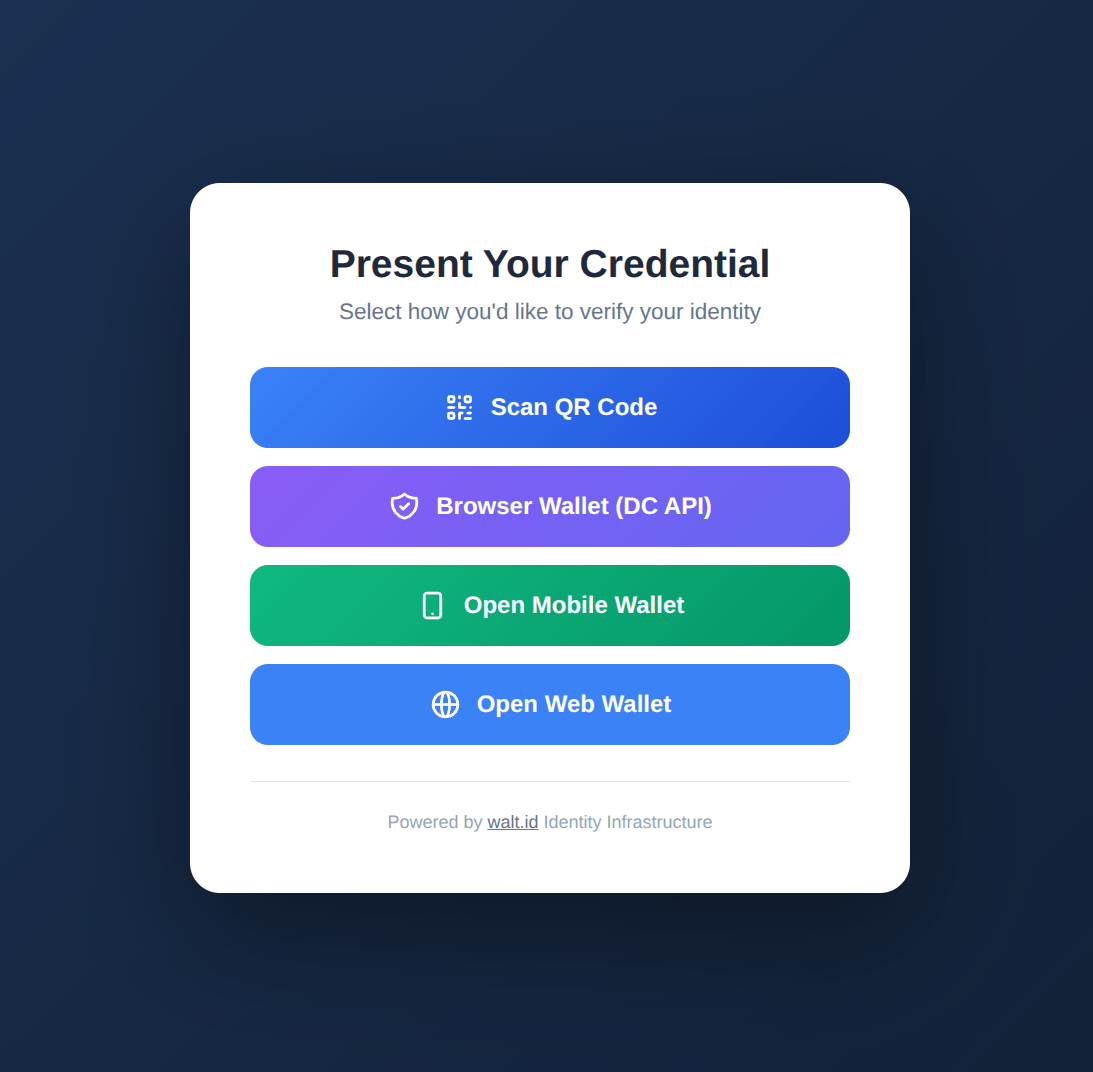
Available flows:
| Flow | Description | User Experience | Device | Browser Support |
|---|---|---|---|---|
| QR Code | Cross-device presentation | Scan QR with mobile wallet | Any device with camera | All browsers |
| DC API | Browser-native credential API | Browser shows credential picker | Same device | Chrome 128+, Edge |
| Deep Link | Direct wallet launch | Opens mobile wallet app | Same device (mobile) | All mobile browsers |
| Web Wallet | Browser-based wallet | Redirects to web wallet | Same device | All browsers |
Configuration Structure
Flows are configured in the flows object when creating an OIDC Bridge service:
{
  "type": "oidc-bridge",
  "issuerUrl": "https://enterprise.example.com",
  "flows": {
    "qr": {
      "enabled": true,
      "buttonLabel": "Scan QR Code",
      "verificationSetup": { ... }
    },
    "dc_api": {
      "enabled": true,
      "buttonLabel": "Browser Wallet",
      "verificationSetup": { ... }
    },
    "deep_link": {
      "enabled": true,
      "buttonLabel": "Open Mobile Wallet",
      "verificationSetup": { ... }
    },
    "web_wallet": {
      "enabled": true,
      "buttonLabel": "Open Web Wallet",
      "targetUrl": "https://wallet.example.com",
      "verificationSetup": { ... }
    }
  }
}
Common Flow Fields
| Field | Required | Description |
|---|---|---|
enabled | Yes | Enable or disable this flow |
buttonLabel | No | Text shown on the presentation button (default varies by flow) |
verificationSetup | Yes* | The credential request (DCQL query) sent to the wallet for this flow. See Which flow_type to use. |
* Each enabled flow needs a verificationSetup unless a client-level or service-level setup covers it.
Which flow_type to use
Each flow's verificationSetup is structure like a Verifier2 verification request including a flow_type field. For the OIDC Bridge, always configure every flow with flow_type: cross_device — including the DC API flow:
"verificationSetup": {
  "flow_type": "cross_device",
  "core_flow": {
    "dcql_query": { ... }
  }
}
Flow 1: QR Code (Cross-Device)
The QR code flow enables users to scan a QR code with their mobile wallet and present credentials from their phone.
How It Works
Loading diagram...
Configuration
{
  "flows": {
    "qr": {
      "enabled": true,
      "buttonLabel": "Scan QR Code with Mobile Wallet",
      "verificationSetup": {
        "flow_type": "cross_device",
        "core_flow": {
          "dcql_query": {
            "credentials": [{
              "id": "mdl",
              "format": "mso_mdoc",
              "meta": {
                "doctype_value": "org.iso.18013.5.1.mDL"
              },
              "claims": [
                { "path": ["org.iso.18013.5.1", "given_name"] },
                { "path": ["org.iso.18013.5.1", "family_name"] },
                { "path": ["org.iso.18013.5.1", "birth_date"] }
              ]
            }]
          }
        }
      }
    }
  }
}
When to Use
- Desktop users who have credentials on their mobile device
- Public kiosks where users shouldn't log into their wallet
- Cross-device security — credentials never touch the login device
User Experience
- User clicks "Scan QR Code with Mobile Wallet"
- QR code appears on screen
- User opens their mobile wallet and scans the QR code
- Wallet shows credential request and asks for approval
- User approves and the credential is sent
- Desktop browser automatically redirects to complete login
Flow 2: DC API (Digital Credentials API)
The DC API flow uses the W3C Digital Credentials API (browser-native) for same-device credential presentation.
How It Works
Loading diagram...
Configuration
{
  "flows": {
    "dc_api": {
      "enabled": true,
      "buttonLabel": "Use Browser Wallet",
      "verificationSetup": {
        "flow_type": "cross_device",
        "core_flow": {
          "dcql_query": {
            "credentials": [{
              "id": "mdl",
              "format": "mso_mdoc",
              "meta": {
                "doctype_value": "org.iso.18013.5.1.mDL"
              },
              "claims": [
                { "path": ["org.iso.18013.5.1", "given_name"] },
                { "path": ["org.iso.18013.5.1", "family_name"] }
              ]
            }]
          }
        },
        "expectedOrigins": ["https://enterprise.example.com"]
      }
    }
  }
}
Important: Expected Origins
The expectedOrigins field is required for DC API flows. It specifies which origins are allowed to receive the credential presentation:
{
  "expectedOrigins": [
    "https://enterprise.example.com",
    "https://iam.example.com"
  ]
}
The DC API requires HTTPS. Localhost HTTP URLs are automatically converted to HTTPS by the OIDC Bridge for testing.
When to Use
- Modern browsers (Chrome 128+)
- Same-device login where the credential is stored in a system wallet
- Streamlined UX — no QR scanning needed
- High security — credentials managed by the OS
User Experience
- User clicks "Use Browser Wallet"
- Browser shows native credential picker UI
- User selects credential from system wallet (Google Wallet, Apple Wallet, etc.)
- Browser automatically submits the credential
- User is logged in
Testing DC API
To test DC API support:
# Check browser support
open https://portal2.demo.walt.id/

# Test with your OIDC Bridge
# 1. Ensure HTTPS is enabled
# 2. Configure expectedOrigins
# 3. Use a browser that supports the DC API eg. Chrome 128+
# 4. Have matching credentials Wallet
Flow 3: Deep Link (Mobile Same-Device)
The deep link flow uses the openid4vp:// URL scheme to launch the mobile wallet app directly.
How It Works
Loading diagram...
Configuration
{
  "flows": {
    "deep_link": {
      "enabled": true,
      "buttonLabel": "Open Mobile Wallet App",
      "verificationSetup": {
        "flow_type": "cross_device",
        "core_flow": {
          "dcql_query": {
            "credentials": [{
              "id": "identity",
              "format": "dc+sd-jwt",
              "meta": {
                "vct_values": ["IdentityCredential"]
              },
              "claims": [
                { "path": ["given_name"] },
                { "path": ["family_name"] },
                { "path": ["email"] }
              ]
            }]
          }
        }
      }
    }
  }
}
When to Use
- Mobile browsers where users have wallet apps installed
- Native app integration — wallet apps can handle
openid4vp://scheme - Same-device login without browser-native API support
User Experience
- User clicks "Open Mobile Wallet App" on their phone
- OS shows app picker (if multiple wallets installed)
- Wallet app opens with credential request
- User approves presentation
- Browser automatically reopens and completes login
Flow 4: Web Wallet
The web wallet flow redirects users to a browser-based wallet interface.
How It Works
Loading diagram...
Configuration
{
  "flows": {
    "web_wallet": {
      "enabled": true,
      "buttonLabel": "Use Web Wallet",
      "targetUrl": "https://wallet.example.com/present",
      "verificationSetup": {
        "flow_type": "cross_device",
        "core_flow": {
          "dcql_query": {
            "credentials": [{
              "id": "identity",
              "format": "dc+sd-jwt",
              "meta": {
                "vct_values": ["IdentityCredential"]
              },
              "claims": [
                { "path": ["given_name"] },
                { "path": ["family_name"] }
              ]
            }]
          }
        }
      }
    }
  },
  "uiConfig": {
    "webWalletBaseUrl": "https://wallet.example.com"
  }
}
Required Fields
| Field | Description |
|---|---|
targetUrl | Full URL to redirect to (overrides webWalletBaseUrl) |
uiConfig.webWalletBaseUrl | Base URL for web wallet (used if targetUrl not specified) |
The OIDC Bridge constructs the redirect URL with query parameters:
https://wallet.example.com/present?request_uri={verifier2_request_uri}
When to Use
- Enterprise web wallets deployed alongside the Enterprise Stack
- Browser-only environments (no mobile wallet)
- Managed credentials stored in web wallet
- Consistent branding — wallet UI matches enterprise theme
User Experience
- User clicks "Use Web Wallet"
- Browser redirects to web wallet page
- Web wallet shows credentials and asks for approval
- User approves presentation
- Web wallet redirects back to OIDC Bridge
- User is logged in
Integration with Enterprise UI
If using the walt.id Enterprise UI web wallet:
{
  "flows": {
    "web_wallet": {
      "enabled": true,
      "buttonLabel": "Open walt.id Web Wallet",
      "targetUrl": "https://enterprise-ui.example.com/present"
    }
  },
  "uiConfig": {
    "webWalletBaseUrl": "https://enterprise-ui.example.com"
  }
}
Per-Flow Verification Setup
Each flow can have its own DCQL query. This is useful when:
- QR flow accepts mDL (mobile driver's license)
- DC API flow accepts SD-JWT VC (browser-stored)
- Web wallet flow accepts any credential type
Example: Different Credentials Per Flow
{
  "flows": {
    "qr": {
      "enabled": true,
      "buttonLabel": "Scan mDL with Phone",
      "verificationSetup": {
        "flow_type": "cross_device",
        "core_flow": {
          "dcql_query": {
            "credentials": [{
              "id": "mdl",
              "format": "mso_mdoc",
              "meta": { "doctype_value": "org.iso.18013.5.1.mDL" },
              "claims": [
                { "path": ["org.iso.18013.5.1", "given_name"] },
                { "path": ["org.iso.18013.5.1", "family_name"] }
              ]
            }]
          }
        }
      }
    },
    "dc_api": {
      "enabled": true,
      "buttonLabel": "Browser Credential",
      "verificationSetup": {
        "flow_type": "cross_device",
        "core_flow": {
          "dcql_query": {
            "credentials": [{
              "id": "identity",
              "format": "dc+sd-jwt",
              "meta": { "vct_values": ["IdentityCredential"] },
              "claims": [
                { "path": ["given_name"] },
                { "path": ["family_name"] }
              ]
            }]
          }
        }
      }
    },
    "web_wallet": {
      "enabled": true,
      "buttonLabel": "Web Wallet (Any Type)",
      "targetUrl": "https://wallet.example.com/present",
      "verificationSetup": {
        "flow_type": "cross_device",
        "core_flow": {
          "dcql_query": {
            "credentials": [
              {
                "id": "option-mdl",
                "format": "mso_mdoc",
                "meta": { "doctype_value": "org.iso.18013.5.1.mDL" },
                "claims": [
                  { "path": ["org.iso.18013.5.1", "given_name"] },
                  { "path": ["org.iso.18013.5.1", "family_name"] }
                ]
              },
              {
                "id": "option-vc",
                "format": "dc+sd-jwt",
                "meta": { "vct_values": ["IdentityCredential"] },
                "claims": [
                  { "path": ["given_name"] },
                  { "path": ["family_name"] }
                ]
              }
            ],
            "credential_sets": [{
              "options": [["option-mdl"], ["option-vc"]],
              "required": true
            }]
          }
        }
      }
    }
  }
}
If no per-flow verificationSetup is provided, the OIDC Bridge uses defaultVerificationSetup from the service configuration.
UI Customization
Customize the presentation selection page appearance:
{
  "uiConfig": {
    "brandName": "Acme Corporation",
    "primaryColor": "#3B82F6",
    "logoUrl": "https://example.com/logo.png",
    "webWalletBaseUrl": "https://wallet.example.com"
  }
}
UI Configuration Fields
| Field | Description | Example |
|---|---|---|
brandName | Organization name shown at top of page | "Acme Corp" |
primaryColor | Hex color for buttons and accents | "#3B82F6" |
logoUrl | URL to organization logo (shown above brand name) | "https://example.com/logo.png" |
webWalletBaseUrl | Default base URL for web wallet redirects | "https://wallet.example.com" |
Recommended Configurations
Configuration 1: Mobile-First (QR + Deep Link)
For scenarios where most users will present from mobile wallets:
{
  "flows": {
    "qr": {
      "enabled": true,
      "buttonLabel": "Scan with Mobile Wallet"
    },
    "deep_link": {
      "enabled": true,
      "buttonLabel": "Open Wallet App"
    },
    "dc_api": {
      "enabled": false
    },
    "web_wallet": {
      "enabled": false
    }
  }
}
Configuration 2: Modern Browser (DC API + Web Wallet)
For controlled environments with modern browsers:
{
  "flows": {
    "qr": {
      "enabled": false
    },
    "deep_link": {
      "enabled": false
    },
    "dc_api": {
      "enabled": true,
      "buttonLabel": "Use System Wallet"
    },
    "web_wallet": {
      "enabled": true,
      "buttonLabel": "Use Web Wallet",
      "targetUrl": "https://wallet.example.com/present"
    }
  }
}
Configuration 3: All Options (Maximum Flexibility)
Enable all flows to support all user scenarios:
{
  "flows": {
    "qr": {
      "enabled": true,
      "buttonLabel": "Scan QR Code"
    },
    "deep_link": {
      "enabled": true,
      "buttonLabel": "Open Mobile Wallet"
    },
    "dc_api": {
      "enabled": true,
      "buttonLabel": "Browser Wallet"
    },
    "web_wallet": {
      "enabled": true,
      "buttonLabel": "Web Wallet"
    }
  }
}
Next Steps
- Claim Mappings — Configure credential-to-claim mappings
- Setup — Create your OIDC Bridge service
- Keycloak Integration — See multi-flow in action